Task Progress Visual
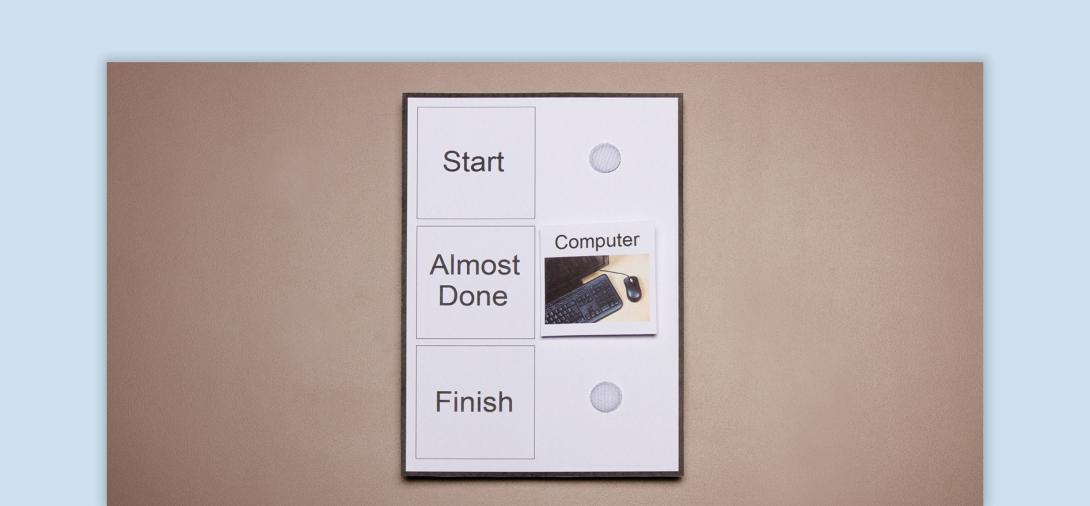
This visual gives students a general idea of where they are in the sequence of an activity, helping them understand the beginning, middle, and end of tasks.
When to Use:
- Facilitate transitions from one activity to another by providing students with a clear visual representation of where they are in the sequence.
- Help students who frequently ask about the duration of tasks by showing them the overall progress of an activity, without specifying the exact time.
- Support students who need assistance with completing tasks by visually indicating the start and end points, helping them maintain focus and task persistence.
How to Use:
- Introduce the visual by explaining that it shows where the student is in the sequence of the current activity. Start with the “Start” section and place the appropriate icon or image representing the task.
- Explain the task’s duration, giving the student a general idea of how long the activity will take.
- Move the icon or image to the “Almost Done” section when the task is nearing completion, telling the student that they are getting closer to finishing.
- Move the icon to “Finish” when the task is completed and verbally indicate that the activity has ended (e.g., “The task is finished, it’s time for …”).
- Fade Prompts gradually by providing less verbal guidance and relying more on the visual cue as the student becomes familiar with the system.
Tips:
- Use Reinforcement - Reinforce successful task completion by offering praise or a small reward when the student successfully transitions through the stages of the visual.
- Adjust Pace for Success - If a student is struggling or frustrated, move the icon more quickly through the stages to help them feel successful. To extend an activity, move the icon more slowly.
- Introduce During Low-Stress Times - Begin teaching the Task Progress Visual when the student is calm and in a low-stress situation. This will help them more effectively learn to rely on the tool.
- Consistency - Use the visual consistently for each task to help the student become familiar with the concept of task progression and duration.
Variations:
- Visual Options - Customize the Task Progress Visual with different images icons or colors to make it more engaging or appropriate for different students.
- Digital Format - Use a digital version of the Task Progress Visual on a tablet or interactive whiteboard to make the visual dynamic and interactive.
- Personalized Notes - Add personalized notes or visuals, such as the student’s favorite activities or specific goals, to increase the relevance of the visual and enhance engagement.
- Combine with Other Visuals - Combine the Task Progress Visual with other systems like First/Then or mini schedules to give students more detailed guidance on tasks and time management.
Related Course

Autism
Visual Supports
Discover the power of visual supports for supporting students with ASD. Learn about implementation steps, skills, and resources to enhance independence.
View Course